
Plans & billing
Choose the card for your next bill
Add a payment method and set the one you want billed.
Reviewed
Choose which card takes the next watch
The screenshot uses fictional sample data. Your plan, saved settings and permissions may change which controls are available.
- Open Account → Billing and find Payment methods.
- If this is your first card, choose Add card and complete the secure Stripe form. Adding a card does not charge it.
- For a different saved card, choose Make default and wait for the confirmation.
- Check that the Default card badge has moved to your choice. Use Refresh cards if a pending update has not appeared.
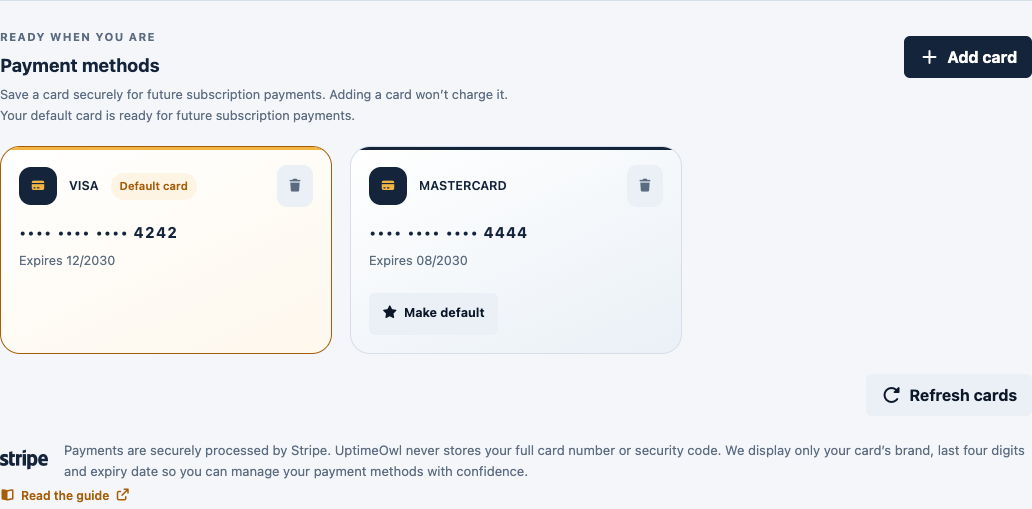
Manage cards as the owner
Open Account → Billing and add a card through the Stripe form. Complete any verification requested by the payment form. UptimeOwl does not store the full card number or security code.
Set the default
The first saved card becomes the default. When adding another card, select it as default if that is the one you want billed. The selected default moves to the top of the list.
Use Refresh cards if you need to retrieve the latest saved-card state.
Changing a card does not settle every invoice
Review any outstanding-payment notice after updating the default. Use the available payment action if an invoice still needs payment. Check the result before repeating an action that may already be processing.